Format Numbers, Convert Spelling and Remove Fillers and Stutters in ArcaScribe
Speech recognition is inconsistent with numbers, writing "twenty one days" in one line and "21 days" in the next. It uses American spelling, and it often leaves hesitations ("um") and stutters ("the, the, the") in the text.
ArcaScribe corrects all four before the draft is exported: numbers, spelling, filler words and duplicate words. Each proposed change is tied to its point in the recording, so it can be heard before it is accepted, individually or in bulk.
What You'll Need
- ArcaScribe, latest version — download here
- An English-language recording. These tools apply to English transcripts in the transcript editor
- A completed transcript, or a recording ready to transcribe. For first-time setup, see the quick start guide
Part 1: Choose whether to apply automatically or review manually
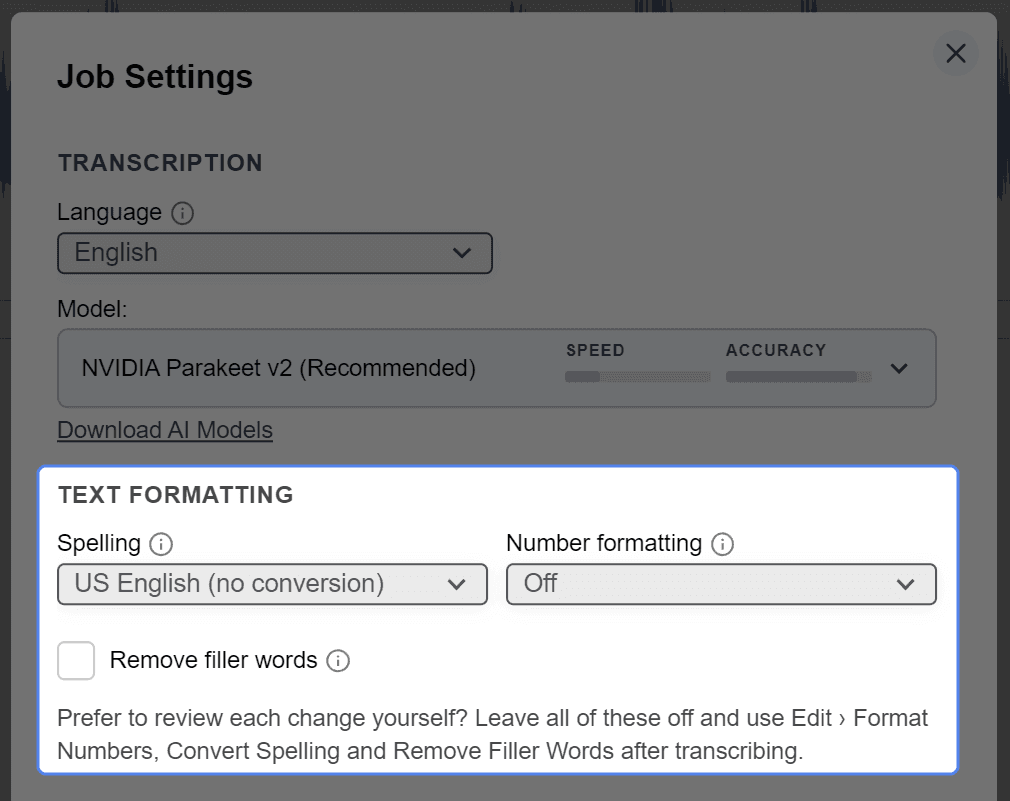
Set Text formatting in Job Settings
The Text formatting section of the Job Settings window, opened with Transcribe Media File, determines whether formatting is applied during transcription or reviewed afterwards.
Option A: apply automatically. The selected settings are applied as the transcript is generated:
- Spelling — US English (no conversion), Canadian English, British English or Australian English.
- Number formatting — Off, or Conventional number rules for court-reporting style.
- Remove filler words — removes "uh", "um" and similar hesitations. The info icon lists exactly which sounds are affected.
Duplicate words are not removed automatically, because some repeats belong in the record, like "no, no, no". They are reviewed from the Edit menu (see Part 2).
Option B: review manually. Leave all three settings off; Turn all off clears them in one click. After transcription, the same tools run from the Edit menu and list each proposed change for review (see Part 2).
Part 2: Manual review (Option B)
Open a tool from the Edit menu
This part applies to Option B. With Option A, it is needed only for duplicate words.
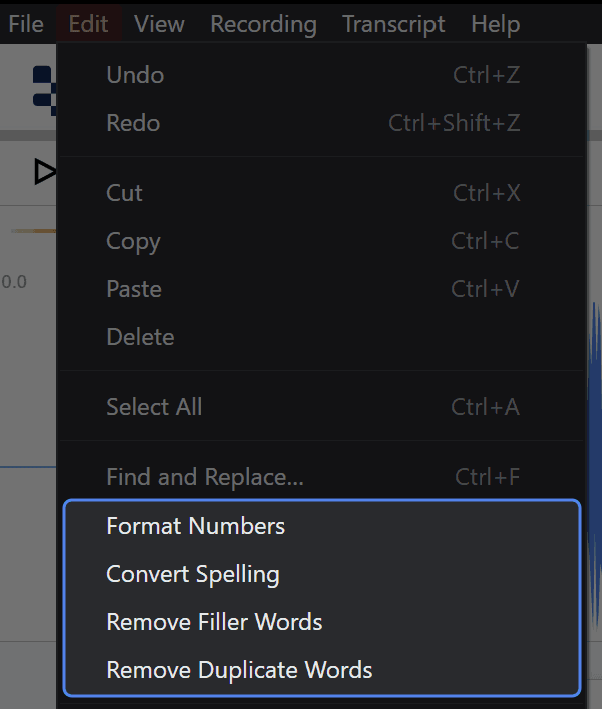
The Edit menu lists four tools beneath Find and Replace: Format Numbers, Convert Spelling, Remove Filler Words and Remove Duplicate Words. Each opens a review panel to the left of the transcript. One panel is open at a time.
The review panel
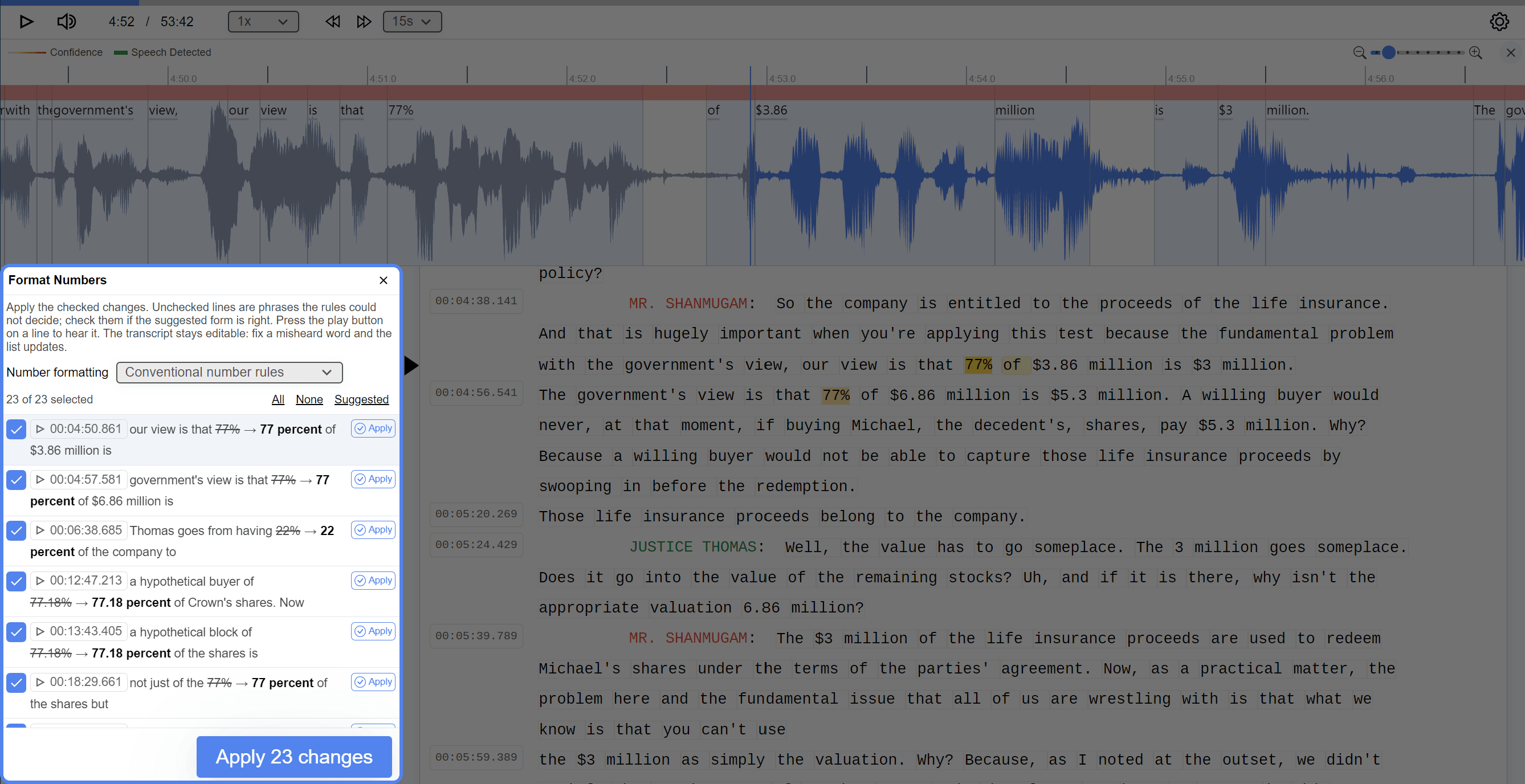
Each line is one proposed change and shows:
- a checkbox that includes the line in a bulk apply;
- a play button and timestamp;
- a few words of context, then the change, e.g. I paid him
two thousand six hundred ninety five dollars→ $2,695 in cash; - where the tool is uncertain, a note such as "May be a year: '85" or "May be repeated on purpose".
Confident changes are pre-selected; lines with a note are not. In "I'm guessing maybe two, three hundred → 300 yards", the rules cannot tell whether "two, three hundred" is one number or two, so the decision is left to the reviewer.
Clicking a line scrolls the transcript to that point. While the panel is open, each change is highlighted in the transcript.
Play back a change
The play button plays the recording from one word before the change to one word after. Hearing exactly what was said shows whether the suggested change is right, or whether the line should be left as it is or edited by hand.

Apply changes
Individually: Apply at the end of a line (Remove in the removal tools) makes that change and drops the line from the list.
In bulk: the button at the foot of the panel applies every selected line, e.g. Apply 23 changes in Format Numbers or Remove 3 duplicates in Remove Duplicate Words. The count above the list ("23 of 23 selected") has three shortcuts: All, None, and Suggested, which restores the tool's own selection. Remove Duplicate Words offers only None (see step 9).
Whether one line or fifty are applied, it is a single undo step (Ctrl+Z, ⌘Z on Mac).
Part 3: What each tool changes
Format Numbers
Conventional number rules follows the conventions of the standard court-reporting style guides:
- Dates — "August sixth, twenty twenty five" → August 6, 2025; "May 25th, 2014" → May 25, 2014.
- Times — "nine twenty a.m." → 9:20 a.m.; "eight o'clock" → 8:00.
- Money and percentages — "two thousand six hundred ninety five dollars" → $2,695; "38%" → 38 percent.
- Pages, lines and exhibits — "page two" → page 2; "exhibit number five" → exhibit No. 5.
- Ten and above as figures, one to nine as words — "twenty one days" → 21 days; "three children" is unchanged. Numbers measuring the same thing are written consistently: "five or ten feet" → 5 or 10 feet.
- Years — "in twenty sixteen" → in 2016; "September of eighty five" → September of '85.
Some phrases are deliberately left as spoken: "one of them", "a hundred dollars", "a tenth of a percent", "Number one, number two", "twenty something years". Ambiguous phrases, such as "two thirty" with nothing to indicate a time, are listed unselected with a note rather than converted.
Convert Spelling
The Spelling menu at the top of the panel sets the target: Canadian English, British English or Australian English. Each US spelling is listed for conversion: "honor" → honour, "defense" → defence, "center" → centre, "traveling" → travelling, "counselor" → counsellor.
Remove Filler Words
Removes hesitations only, for clean verbatim: uh, um, er, hmm, mm and their variant spellings. Surrounding punctuation is adjusted, so "Um, I think" → I think.
Not removed:
- Responses — "uh-huh", "mm-hmm", "huh-uh".
- Interjections — "oh", "ah", "huh".
- Words used as fillers — "you know", "like", "I mean".
- Repeated words and false starts.
A filler that stands as a complete response ("Hmm.") may be the answer, so it is listed unselected.
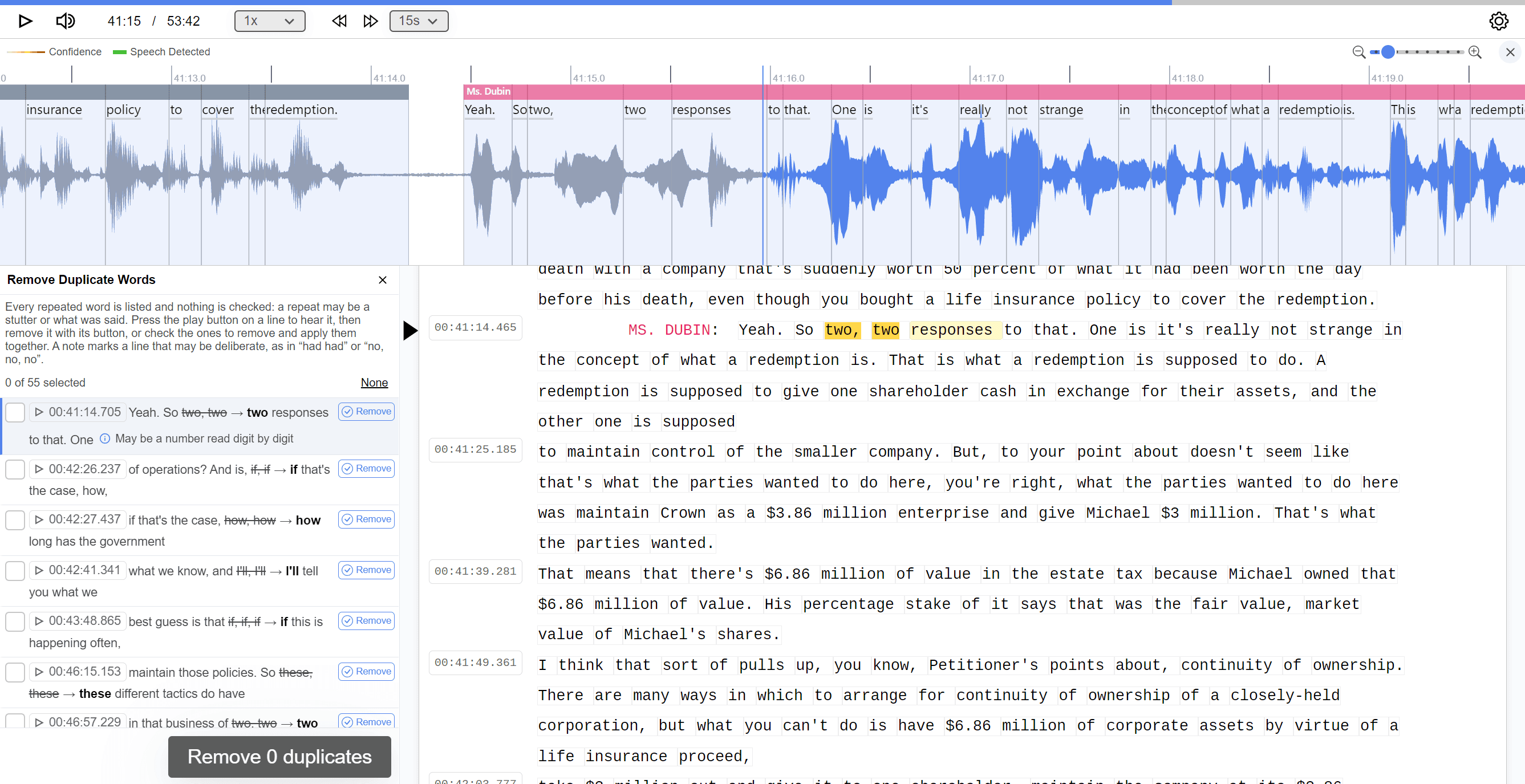
Remove Duplicate Words
Lists any word repeated consecutively ("the, the, the car", "I I I went") and reduces it to a single instance.
Nothing is pre-selected and there is no All shortcut, because some repeats belong in the record. Lines can be removed individually, or selected and removed together.
Repeats that may be deliberate carry the note "May be repeated on purpose": "no, no, no", "yes, yes", "wait, wait", "had had". Repeated numbers such as "two, two" or "four four" carry "May be a number read digit by digit", since "four four" may be 44. "That that" and laughter ("ha ha ha") are not listed.
Your first draft is ready to export for proofing and certification. Use File → Export, or File → Copy to Clipboard to paste into an existing document, and choose the transcript spec your jurisdiction requires. The quick start guide covers both.
If you have questions or run into issues, please get in touch.