How to Convert a Folder of FTR (.trm) Files in ArcaScribe
For The Record (FTR) doesn't save a proceeding as one file. It records in segments — a series of .trm clips inside a single folder, each picking up where the last left off. Opening one clip on its own only gives you a fragment of the recording.
ArcaScribe allows you to convert a folder of .trm files into one continuous audio file — entirely on your own machine. There's no separate player to install and nothing to upload, so confidential audio never leaves your device.
What You'll Need
- ArcaScribe installed on your computer — download here
- An FTR recording folder containing the .trm segment files for the proceeding
Part 1: Combine the FTR folder into one recording
Open the FTR import dialog
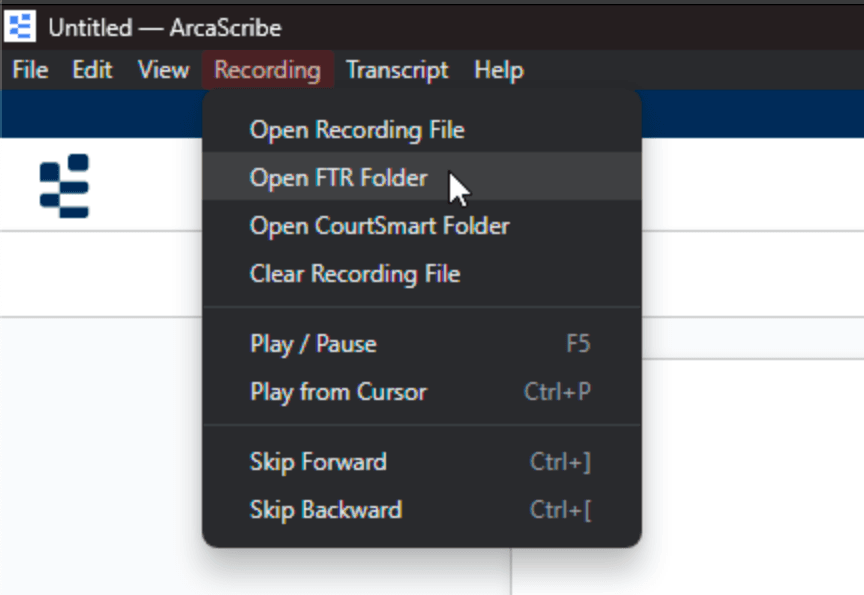
In ArcaScribe, click Recording in the menu bar and select Open FTR Folder. You can also reach it from the audio player's settings (gear) menu, under Open FTR Folder.
Start the folder picker
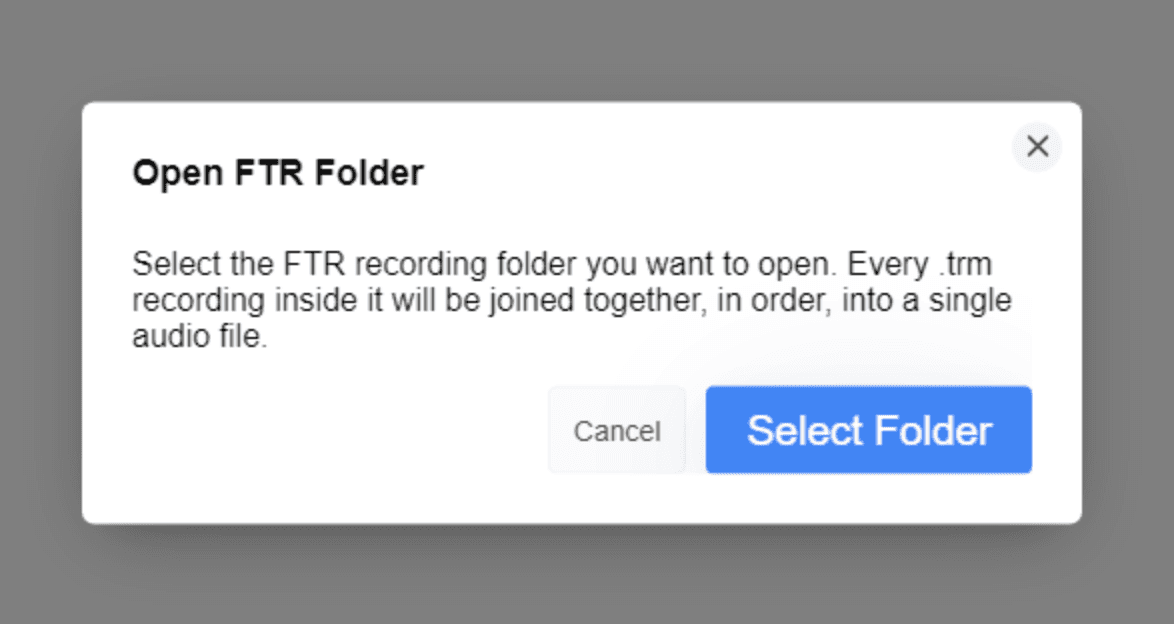
The Open FTR Folder dialog explains what will happen next. Click Select Folder to choose your recording folder.
Select the folder of .trm files
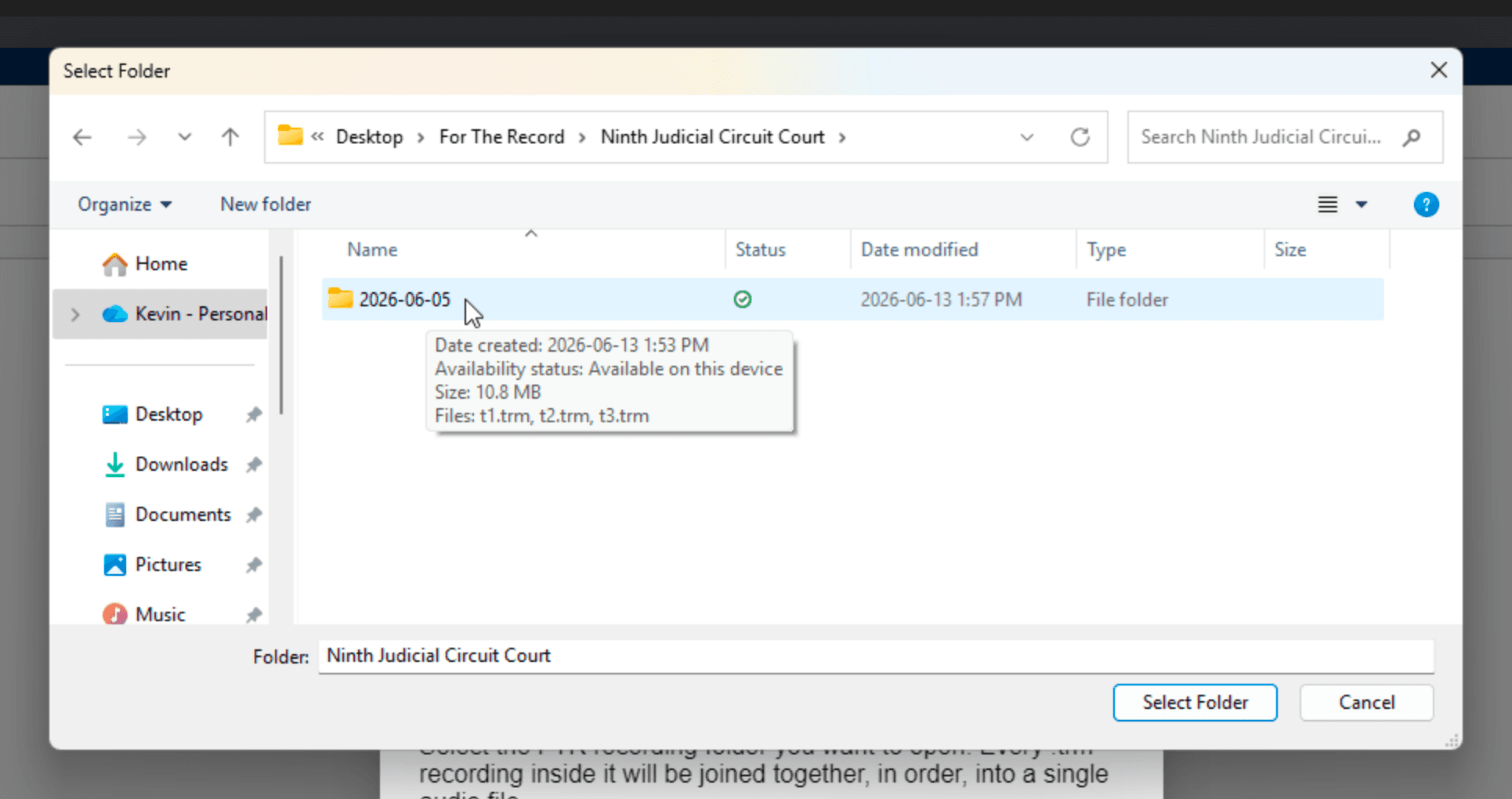
Navigate to the folder that holds your FTR recordings — the one containing the .trm segment files (often named for the courtroom and date) — and select it. ArcaScribe searches the folder, including any subfolders, for every .trm clip, so you can point it at the top-level recording folder.
Review what ArcaScribe found
ArcaScribe lists the segments it found and their combined length — for example, Found 12 audio files · ~58m. Confirm the count matches the proceeding. If you'd like, change the Output file name; ArcaScribe saves the combined recording as a .webm file inside the same folder.
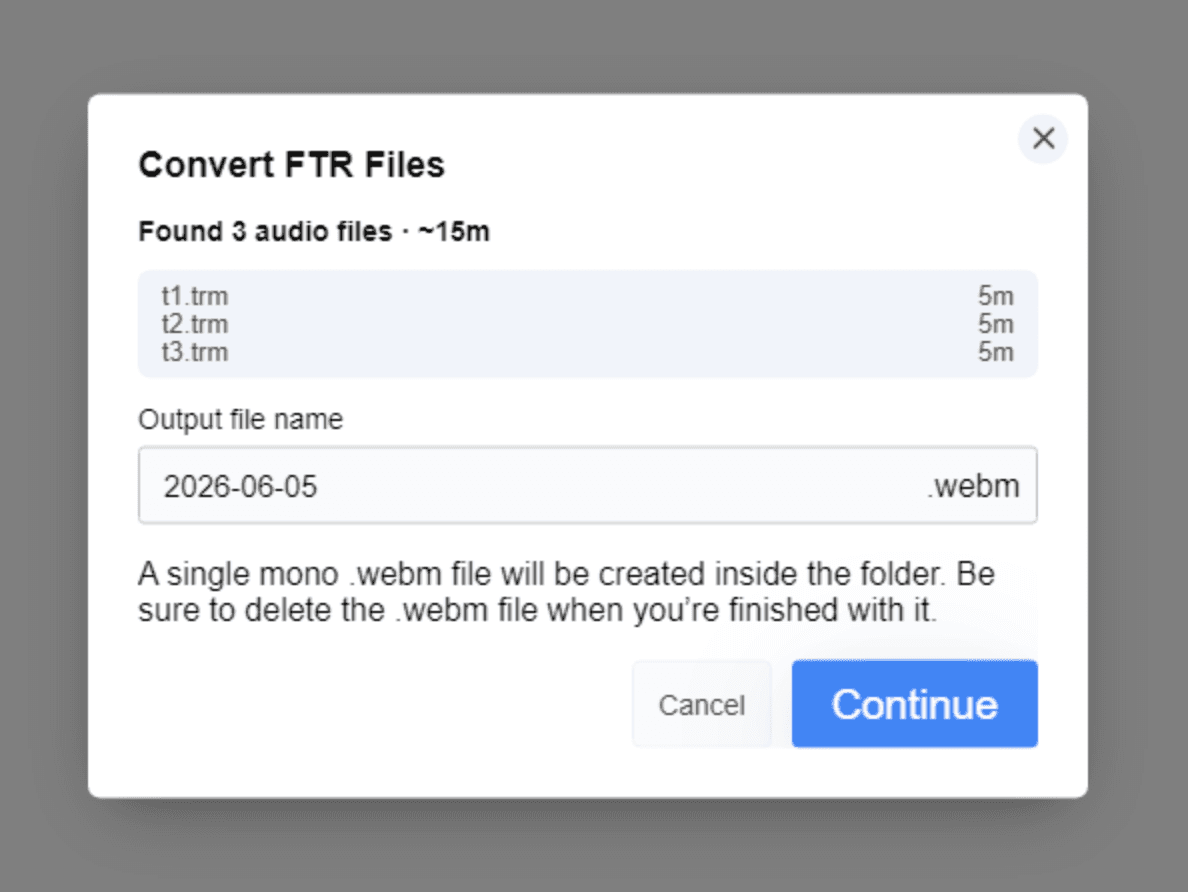
Combine the recordings
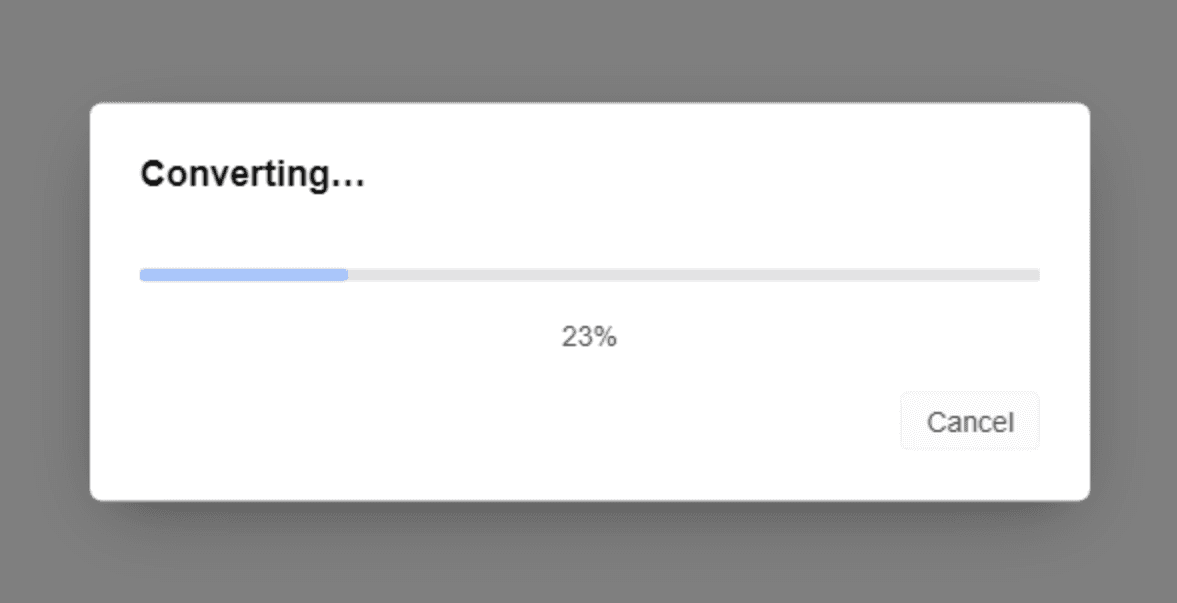
Click Continue. ArcaScribe joins the segments end to end, in order, into a single audio file — all locally, with nothing uploaded. A progress bar shows how far along it is.
Part 2: Transcribe in ArcaScribe
Start transcribing
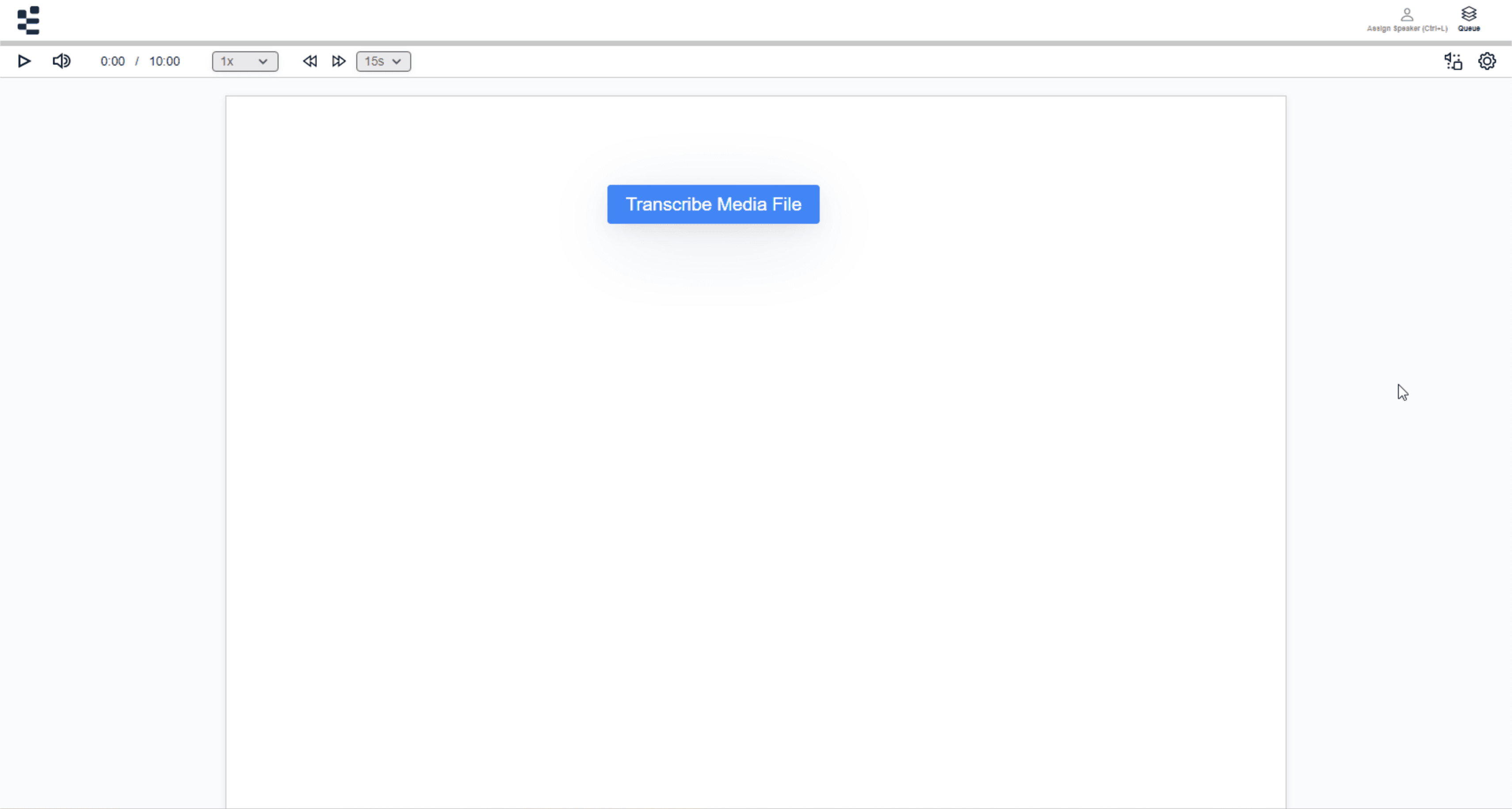
When it finishes, the combined recording loads into ArcaScribe automatically — the full proceeding as one continuous file. Begin transcribing as you normally would, with ArcaScribe generating the first draft for you to proof, format, and certify.
That's it — your FTR folder is now a single recording, ready to transcribe in ArcaScribe. The combined .webm file stays in your recording folder; delete it whenever you've finished with the proceeding. If you have any questions or run into issues, please get in touch.